
How to Change Your Gmail Password on Your Android
This post may contain affiliate links that won’t change your price but will share some commission.
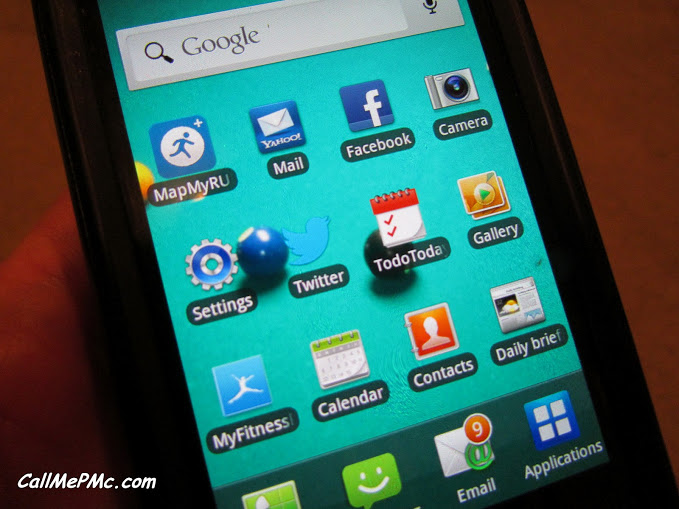
How to Change Your Gmail Password on Your Android
This is out of the realm of what I usually blog about. Every time I change my email password on my Gmail account I get locked out and can’t remember how to change it. Then, I have to search online, search settings on my phone, ask Big Daddy or call the local cell phone store. Just ask Big Daddy, I hate having to call anyone…well, except him. I love calling him with something like, “Do you think fried green tomatoes would be good on a burger? But, don’t you think it also needs some kind of relish or other topping?” Then we launch in to a 15 minute burger condiment conversation.
I digress. So last time I was going to be so smart and write instructions down for myself on how to change the password on my cell phone. I was so smart, in fact, that I can’t remember where I put the instructions….somewhere with password protection, no doubt! So this is as much for me as it is for you, because you may actually already know how to change your password or don’t change your password, but trust me, when you do need instructions you’ll be calling to thank me! Anywho, here goes…
Change your password
- Tap the Gmail icon at the bottom of your screen. In the pic above, it’s second from right with a 9 on it.
- On the bottom of your phone, very left will be an icon that looks like a piece of paper. It has two lines on it. Tap it.
- A pop-up window will appear. Tap More; it has a circle with a triangle in it.
- Tap Account Settings.
- Roll up until you find Incoming Settings (I know, SO RANDOM!) Tap it.
- Ta-da! Your user name will be pre-filled at the top. The second line will be the password. Type in your new password.
- Tap next at bottom of the screen.
- Refresh Gmail.
You’re good to go!!
UPDATE April 2014 for Android 4.0+ S4
- Open Gmail on your phone
- Tap the Bottom left (not on the screen)
- A tab comes up with – Refresh, Label settings, Settings, Send feedback, Help
- Click Help
- This takes you to the internet
- You have 5 options, click the last one “Settings and Troubleshooting”
- Another menu pops up, click “Change your password”
- Click accounts, google.com/editPasswd
- Type current password
- Type new password
- Tap “change password”
That’s all. Your password is now changed on your Android 4.0 device
You may also enjoy this lifestyle content.
- How to Soften Brown Sugar
- How to store garlic
- Paula’s Picks
- Fruit Infused Water
- Harvey’s – Tupelo, MS
- Simple steps to get kids cooking at home
- How to clean quartz countertops
- Tips for Safely Cooking, Storing, and Handling Meat
- 12 easy baking powder substitute
- How to Prep Cook and Store Fresh Basil
- How to make heavy cream
- Mojito magic: Wow your party guests with a DIY mojito bar.
- How to season a cast iron skillet
- Toasting Pecans – Mastering the Technique
- Meat the best: Top 5 steaks perfect for grilling
- How to Soften Cream Cheese
- How to make infused vodka
- Potluck etiquette for hosts and guests
- How To Tenderize Steak: Mastering the Art
- How to grill burgers on gas, charcoal or pellet grills
- 10+ Boozy 21st Birthday Gift Ideas in 2023
- Slicing & dicing superstars: The Best Kitchen Knives
- 6 Types of Cocktails Everyone Should Know
- How many miles should you wear your running shoes?
- How to Keep Your Kitchen Clean & Organized While Cooking
- DIY Shoe Rack from Scrap Wood
- Building a Gluten-Free Pantry
- How to change your email on your Android
- Top 10 tips for using long shelf-life foods
- Difference in Baking Powder and Baking Soda
- Kitchen safety secrets: Simple tips for the home kitchen
- 10 Minute Decluttering Tips
pls help my gmail password I have forgotten it
Please helf my Gmail password recovery
nice article thanks for share this if you have any query related to Outlook support contact us
this is my account
Is there anyway to find the password on an Android 1080? I haven’t been able to receive email since 6-17-2016. It’s now July 2, 2016, and, I still haven’t had access to my email.
My phone must have been somehow broken into, because, I never changed my password. I’ve gone through the 2 step verification, and I’ve tried a number of times, but, every time I enter in the email for verification, it tells me it has no record of that email.
Can you help me?
Thanks so much, I would really appreciate it.
Wendy